EA SPORTS FC™ 26
1. Register a new Steam account
- Download UrbanVPN and select Mexico, UAE or Colombia.
note
You don't have to use UrbanVPN specifically. You can use any other system-wide VPN that allows selecting a server in Mexico, UAE or Colombia.
- Register a new Steam account and select Mexico, UAE or Colombia in the
Country of Residencefield.
important
Do not register the Steam account in the app. You have to specifically do it through this page.
- Once you login with your newly registered Steam account in the app, disable the VPN.
note
You can uninstall the VPN at this point, as you won't need it for the rest of this guide.
2. Download the EA SPORTS FC™ 26 SHOWCASE from Steam
3. Launch the game once so all the necessary files are created
important
Launch the game directly via it's .exe file, not through your Steam Library or the EA app.
4. Patch the game's files
- Open the game's folder (How to open Steam game's folder?)
- Download and open the .zip file with the patched files
- Select all of the files and drag them into the game's folder
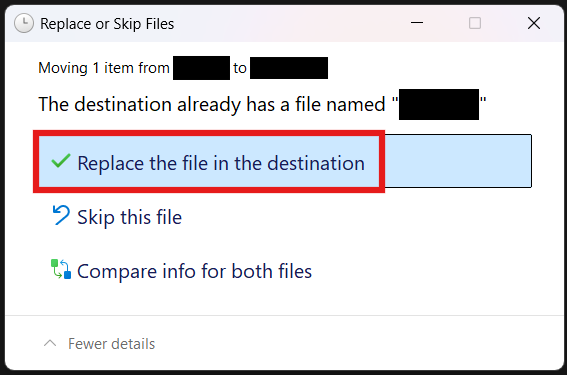
- If a window as shown below pops up, click Replace the file in the destination. It may appear multiple times.
- Delete
FC26_Showcase.exe - Rename
FC26_Showcase fixed.exetoFC26_Showcase.exe
5. Generate the Denuvo token
- Open "EA.Denuvo.Token.Dumper.exe" and press Start
note
Make sure to uncheck "Add DenuvoToken to anadius.cfg even if it exists"
- Copy the generated Denuvo token
- Open
anadius.cfgin the game folder - Find
DenuvoToken(using CTRL + F) and replace thePASTE_A_VALID_DENUVO_TOKEN_HEREwith your copied token
danger
Make sure you do not erase the quotes around the token!
Congrats!
If you've followed all of the steps correctly, you should now be able to play EA SPORTS FC™ 26.
important
Always launch the game directly via it's .exe file, not through your Steam Library or the EA app.